Getting Started
Before you send your first message, make sure your contact lists are up to date and your communication channels are configured. Head to Settings → Communication Channels to verify your setup.
Step-by-Step
Name the Template
Give your message template a clear, descriptive title (e.g., “Annual Flu Clinic Announcement” or “Appointment Reminder - Dr. Smith”).
Choose the Audience
Select the target group of recipients for this message. You can choose from pre-configured patient/resident lists or apply specific filters to reach the exact group you need.
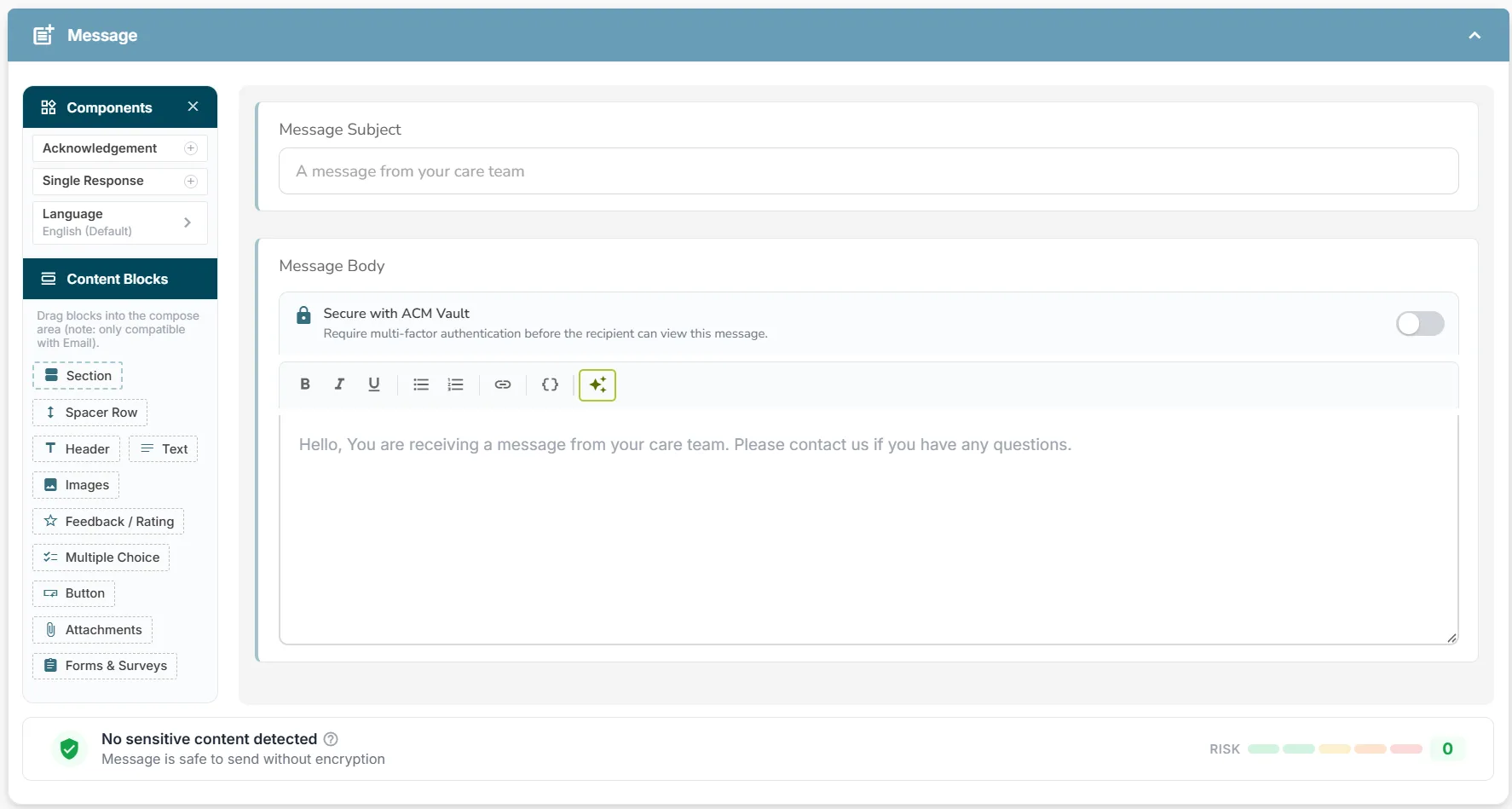
Write the Message
Craft your message content using our intuitive editor:
Select the Channel & Compliance Options
Choose how your message will be delivered to your audience by Delivery Channel (Select Default [uses the recipient’s preferred contact method] or explicitly choose Voice, Email, or SMS.)
Schedule Delivery & Follow-Up Settings
Determine when your message goes out and how non-responders are handled based on timing. Choose between: Send Now, Schedule Later, or On-going Campaign. Also indicate if extra delivery attempts should be automatically performed.
Schedule & Confirm!
Review your summary details to make sure everything looks correct, then click Schedule (or Send). Your message will be queued and sent according to your selected delivery preferences!