Exporting Form Submissions
Exporting Form Submissions
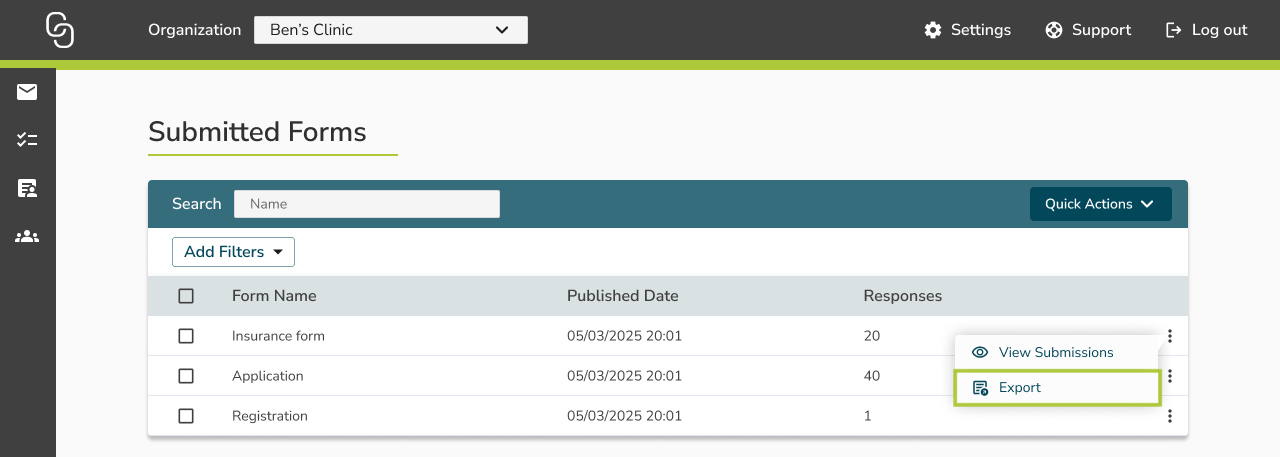
After a form has been published and responses have been collected, you can access all submissions in the Reports >Submitted Forms section.
Viewing and Exporting Submissions
- Next to each form, click the ⠇menu. You will see two options:
- View Submissions: opens the Form Submissions table
- Export: downloads all submissions for that form into a .csv file
Exporting Responses in Bulk
Inside the Sent Form table:
- Scroll all the way to the right side of the table.
- Click the ⠇ menu
- Click Export
All submissions will be downloaded into a .csv in your downloads folder.
Exporting Individual Responses
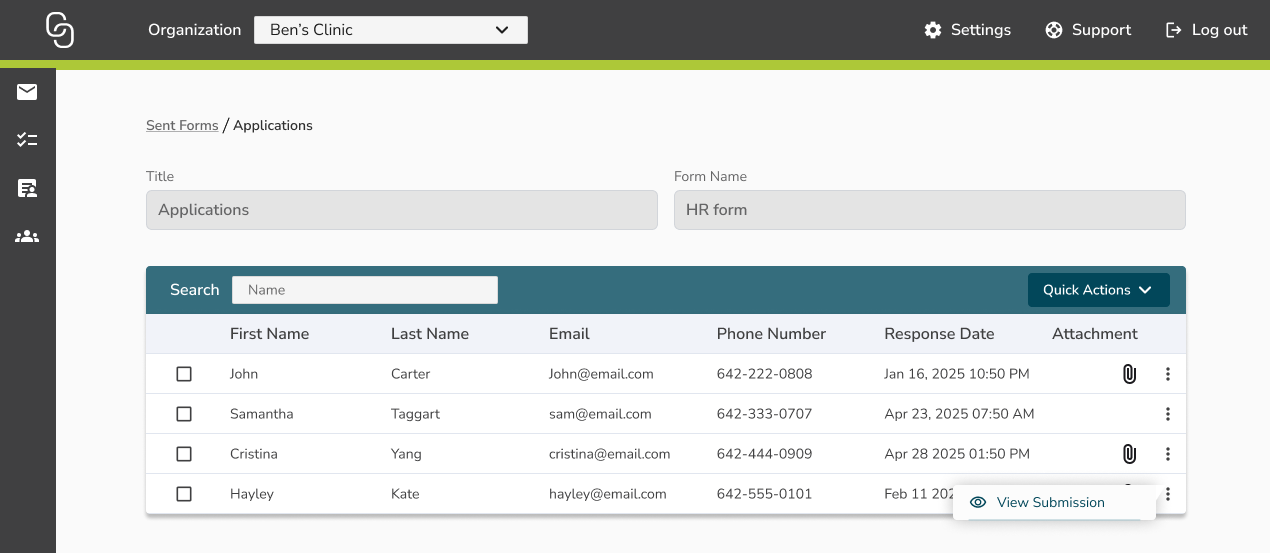
- In the Sent Forms table, click the ⠇menu next to the desired form
- Select View Submissions
- The Sent Forms table will open
- Again, click the ⠇menu next to the desired form and choose View Submission
- The submission will open in a new tab
- Click Export PDF to download the submission as a PDF
Exporting Attachments
When exporting submissions, any files uploaded by respondents—such as photos of insurance cards or identification—are included in the export. To keep this data organized, the system bundles everything into a structured .zip file.
Folder Structure Overview
When you download an export containing attachments, the resulting .zip file is organized to ensure every document is linked to the correct respondent. The hierarchy is structured as follows:
- Main Folder: Named
formName_dateDownloaded.zip- Data File: Inside the main folder, you will find a .csv file (containing all submission data) or a .pdf file (if exporting from the View Submission page).
- Submission Sub-Folders: Each individual submission that includes attachments will have its own folder named by its unique Submission ID.
- Attachments: Inside each Submission ID folder, you will find the specific files uploaded by that person (e.g.,
attachment_name_1.jpg,attachment_name_2.pdf).
- Attachments: Inside each Submission ID folder, you will find the specific files uploaded by that person (e.g.,
Key Takeaway
- Access all submissions via Reports > Submitted Forms.
- See total responses in the Responses column.
- Use the ⠇ to view or export responses.
- The Form Submissions table reflects your form fields dynamically, and exports are available at both the form and submission level.
- This gives you full visibility and flexibility to analyze, share, or archive responses.