Authorizing Your QHR API Connection
Authorizing Your QHR API Connection
Welcome to Cliniconex’s Automated Care Platform! To ensure a seamless integration between your QHR Accuro EMR and our automated services, you must first authorize API access.
This is a mandatory step that must be completed before we can move forward with your implementation. Please follow the steps below to connect your systems.
Step 1: Retrieve Your QHR Credentials
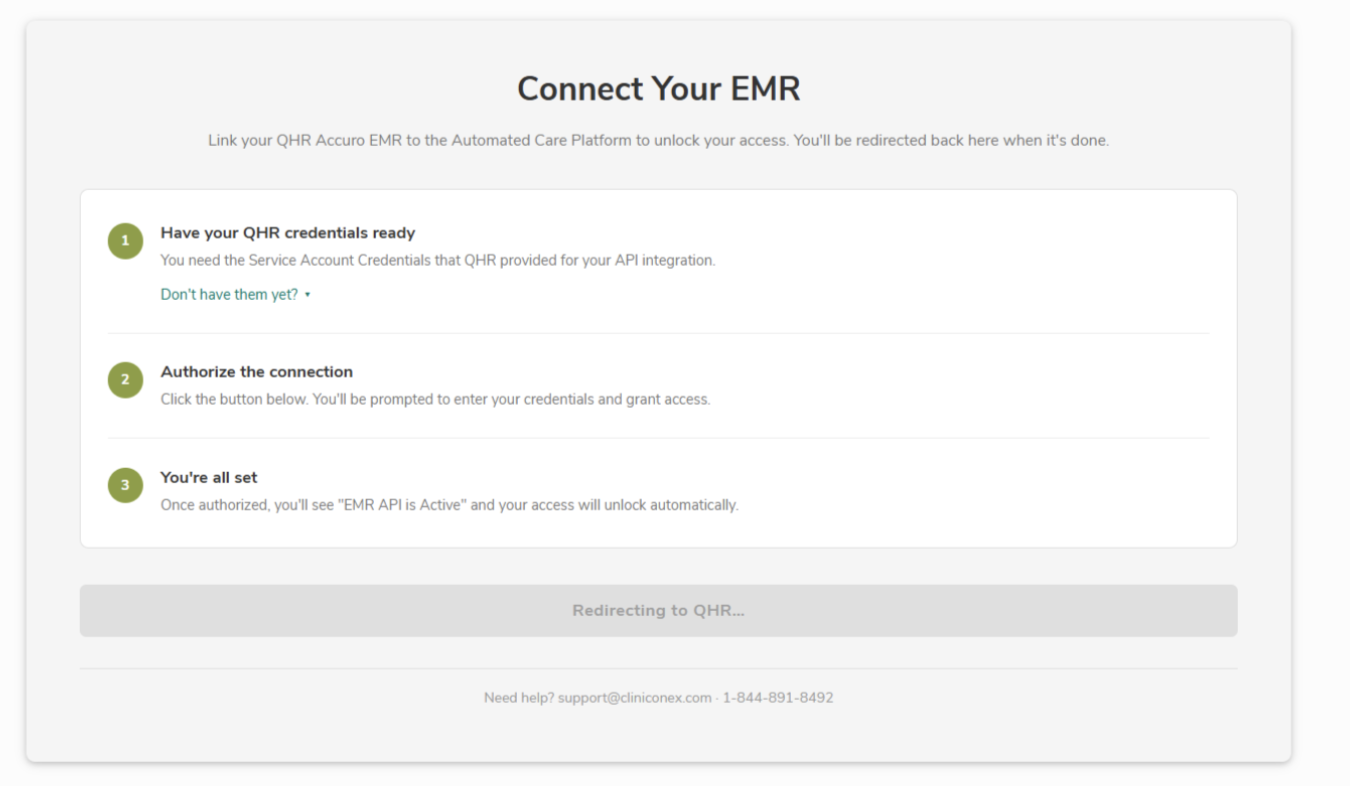
Before logging into Cliniconex, you will need your specific service account credentials from QHR.
- Locate the email you received from QHR regarding your API integration.
- Call the phone number provided in that email.
- A QHR representative will provide you with your Service Account Credentials.
Important: Please keep these credentials in a safe place. You may need them for future reference or system updates.
Step 2: Log in to ACP
Once you have your credentials ready, you can log in to ACP.
- Navigate to Automated Care Platform and login.
- Upon logging in, the first thing on screen will be a popup confirming you have your QHR credentials. Follow the instructions on the popup.
- Enter the QHR credentials when prompted, and your access will unlock automatically.