View Or Edit A Shift
View Or Edit A Shift
Once a schedule has been generated, the calendar displays shifts with rooms as rows and days as columns. Use the calendar controls to change what you see, filter the schedule, and edit individual shifts.
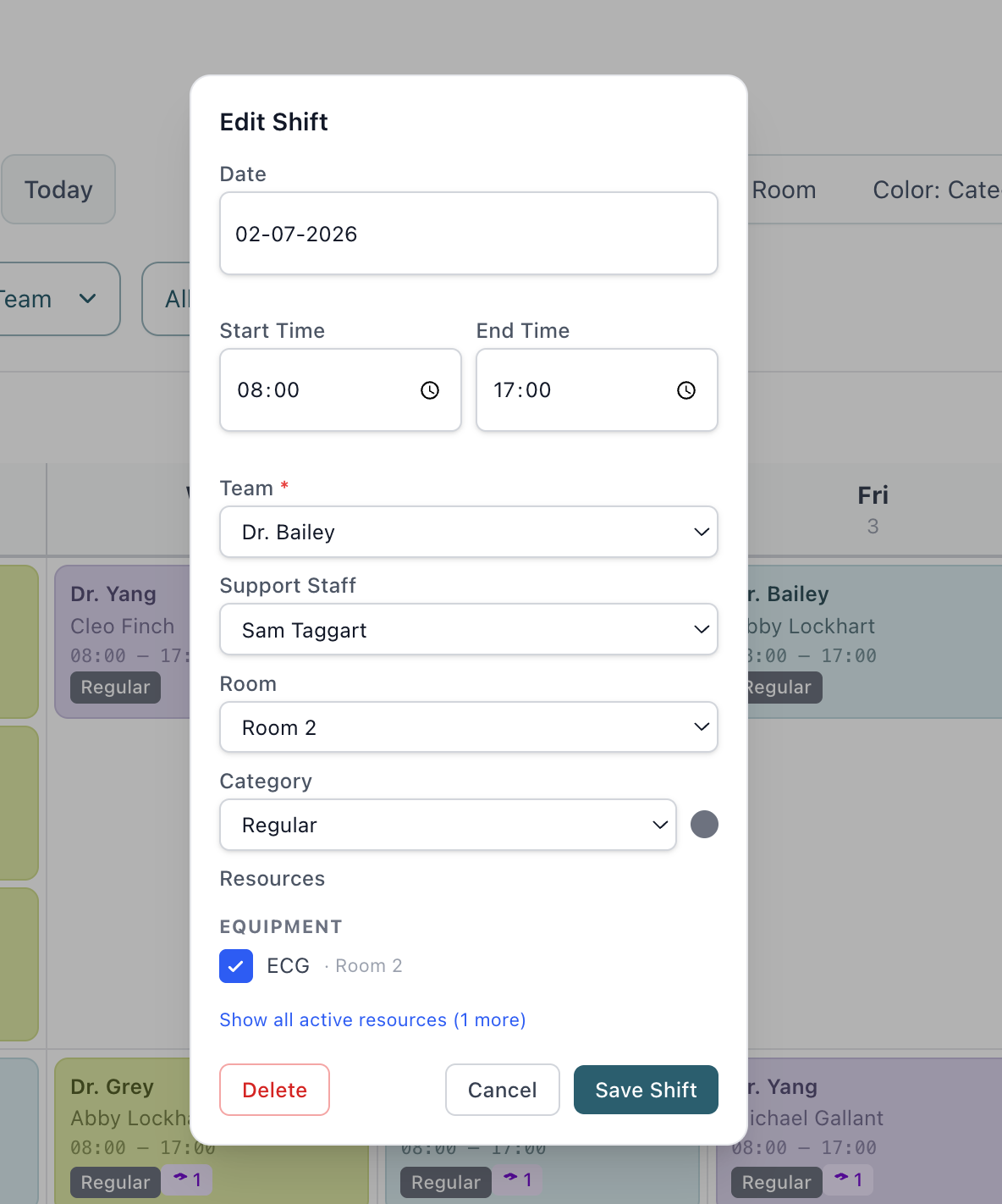
Click any shift card to open the Edit Shift dialog.
In the Edit Shift dialog, you can update:
- Date
- Start and end times
- Physician
- Support staff
- Room
- Category
- Attached resources, such as equipment
Click Save Shift to keep your changes.
Click Cancel to close the dialog without saving.
Click Delete to remove the shift from the schedule.