Resolve Errors and Warnings on a Shift
Resolve Errors and Warnings on a Shift
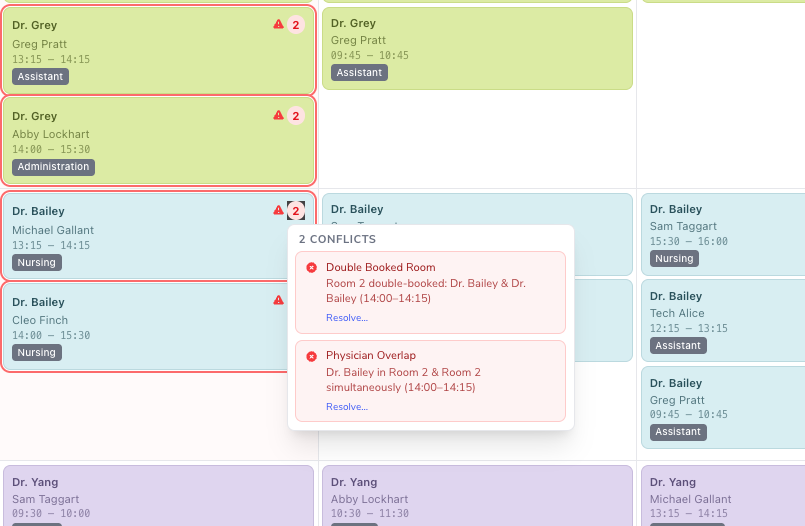
After a schedule is generated, shifts that break a scheduling rule are marked with a small flag badge. The badge appears next to the shift’s category tag and shows the number of issues on that shift. The badge is colour-coded based on the rule severity:
- Red= Warning
- Yellow = Error
Resolve a Flagged Shift
To resolve an error or warning:
- Click the flagged shift to open the Edit Shift dialog.
- Update the field that is causing the conflict.
Depending on the rule, you may need to:
- Reassign the physician
- Reassign the support staff
- Move the shift to a different room
- Adjust the start or end time
- Change the shift details so they no longer overlap or violate a rule
- Click Save Shift.
The flag clears once the conflict has been resolved.
Adjust Rule Severity
Rule severities are managed in Rule Settings.
Use Rule Settings to control which conditions appear as warnings and which appear as errors.