Authorizing Your QHR API Connection
Authorizing Your QHR API Connection
Welcome to Cliniconex’s Automated Care Platform! To ensure a seamless integration between your QHR Accuro EMR and our automated services, you must first authorize API access.
This is a mandatory step that must be completed before we can move forward with your implementation. Please follow the steps below to connect your systems.
Step 1: Retrieve Your QHR Credentials
Before logging into Cliniconex, you will need your specific service account credentials from QHR.
- Locate the email you received from QHR regarding your API integration.
- Call the phone number provided in that email.
- A QHR representative will provide you with your Service Account Credentials.
Important: Please keep these credentials in a safe place. You may need them for future reference or system updates.
Step 2: Access Cliniconex’s Authorization Portal
Once you have your credentials ready, you need to sign in to Cliniconex’s practice management portal.
- Navigate to: https://app.cliniconex.com/pract/do
- Sign in using the same credentials you use for Automated Care Platform. Contact support@cliniconex.com if you need help with this step.
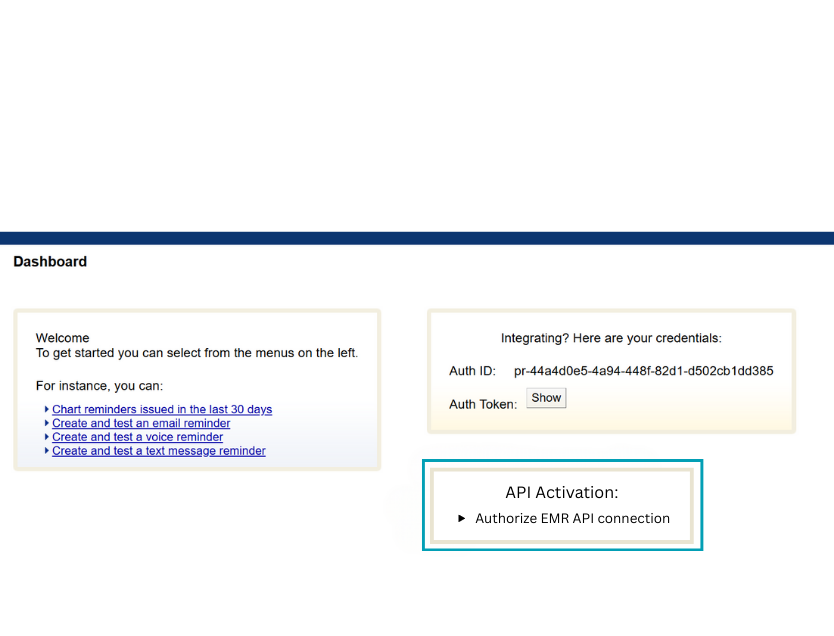
- On the dashboard, locate and click the link labelled “Authorize EMR API Connection”.
Step 3: Complete the Authorization Flow
After clicking the link, you will be redirected to the QHR authorization gateway.
- Enter the Service Account Credentials you obtained from QHR in Step 1.
- Follow the on-screen prompts to grant Cliniconex permission to connect to your EMR.
- Once the process is finished, the system will automatically redirect you back to the Cliniconex portal.
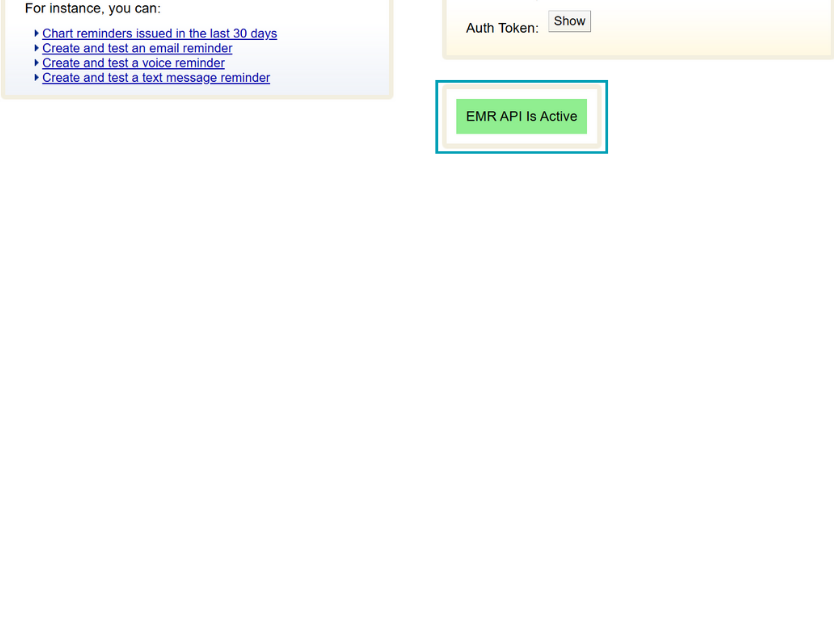
- You should now see a confirmation message stating “EMR API is Active” in green.
- You can now log into ACP!