Message Types
Message Types
Interactive messages that can include options like configurable ratings, multiple-choice questions and message exchange to engage recipients. There are many reasons a user may want to ask a question or to send a poll or survey to their care community, including:
- Assessing experiences from a scheduled visit or appointment
- Assessing experiences from an interview, discussion or interaction with staff
- Requesting participation in an event or clinic
- Likelihood of referral
- RSVP to an event
- Menu or activity preferences
Multiple Choice Questions
To include a multiple-choice question in your message simply:
- Open a template or create a new message
- Click the Message dropdown
- Drag Multiple Choice Question and drop it into the message body.
- Write your question
- Create options by clicking the Add Optionbutton
- Remove choices by clicking the X
Add as many options as you like. Only one multiple-choice question per template is possible.
Rating Scale
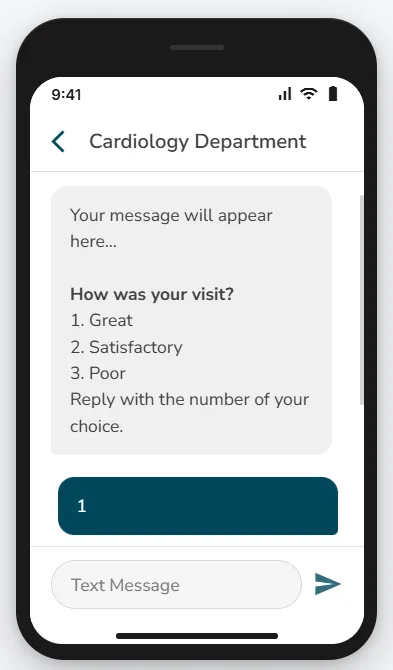
Customize the post-rating experience to create a more personal and actionable interaction. To include a rating question in your message simply:
- Open a template or create a new message
- Click the Message dropdown
- Customise the rating labels and title (1-5)
- Configure your Thank-You message for each rating
Single Response
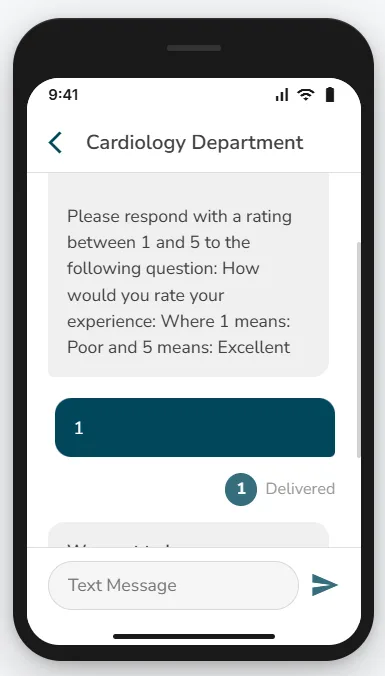
Initiate a single response transaction within the platform.
To send a message and request only a single response:
- Open a template or create a new message
- Filter your audience as desired
- From the Message dropdown, select Single Response
- Send your message
Sending a Form
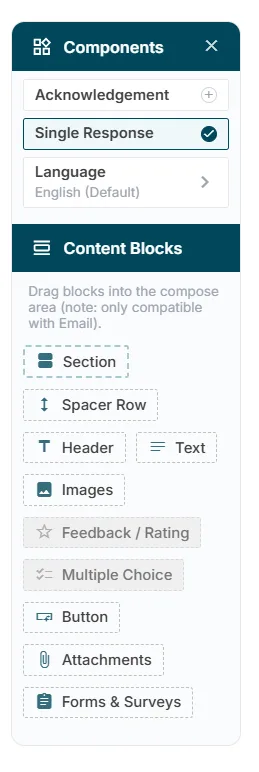
Attach a form or survey to you message to gather actionable information and insights.
To send a message with a form:
- Open a template or create a new message
- Filter your audience as desired
- From the Message dropdown, drag and drop Forms & Surveys
- Attach the desired form(s)
- Use a variable tag to automatically hyperlink the attached form(s)

To View Responses
- Go to Automated Care > Messaging > Sent Messages
View Message Details
- Under the Message Type column, locate the message you want
- Click Job Info to see details
Check Responses
- Each recipient and their response will be listed
- For text responses, click the entry in the Answered column to view the full response
- To see a visual breakdown of responses, click the Analytics button in the top-right corner
Send a Follow-up Message
- Close the pop-up window
- Select the checkbox next to the recipient(s) you want to follow up with
- Click Send Message (top-right corner)
- From the dropdown, choose a template or create a new message
- Write and send your message as usual
- Internal and external appointments where a change has been made or feedback is required on the care plan, medication, diet, social or therapy services
- Resident intake and discharge where the care team and families require dialogue to execute plans effectively
- Announcing shifts and receiving responses/confirming staff shift assignments
- Enable staff to provide updates, responses or timelines on required training or certification