Saved Lists
Saved Lists
Saved Lists allow users to upload and map any existing lists of contacts from outside the EMR/EHR; increasing outreach.
Creating a New List
To upload a list in Automated Care Platform:
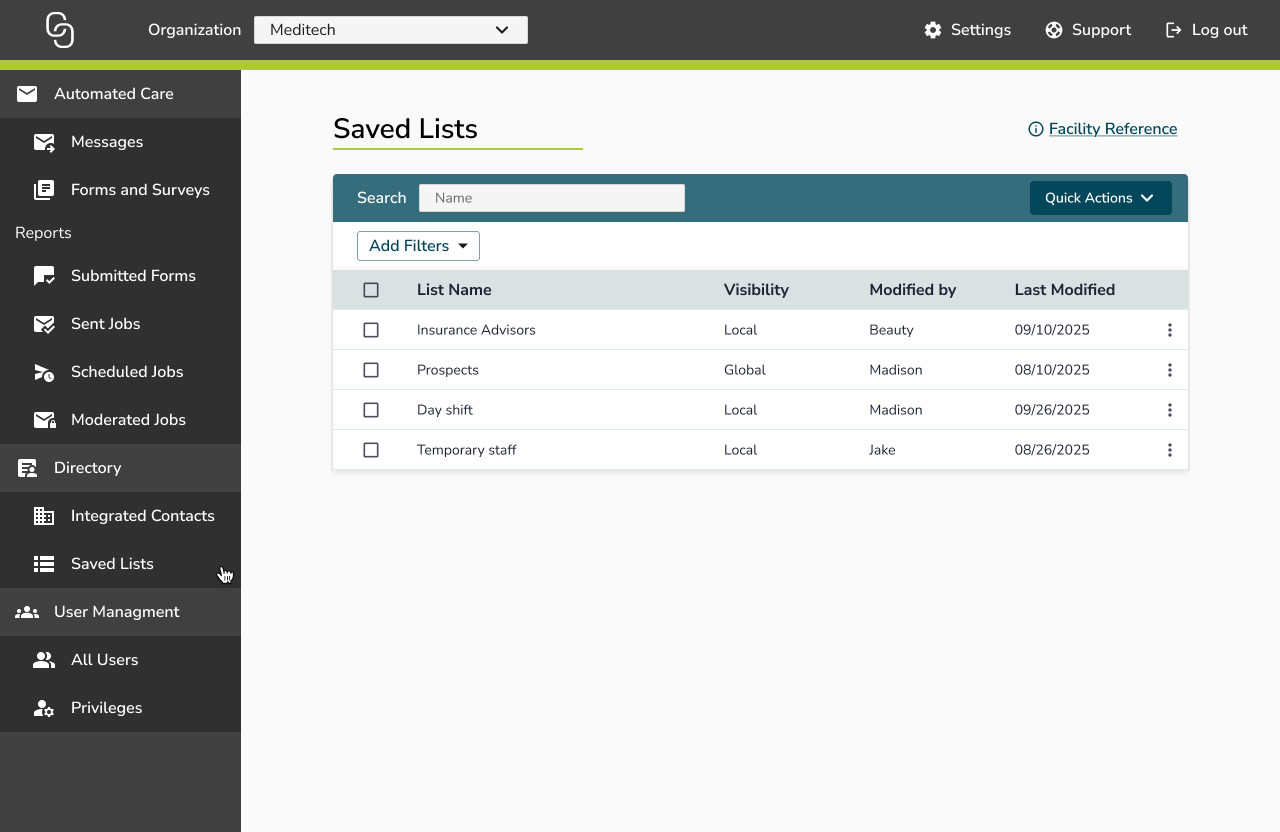
- Navigate to Directory > Saved Lists
- Click Quick Actions or Create First List
Importing a Spreadsheet
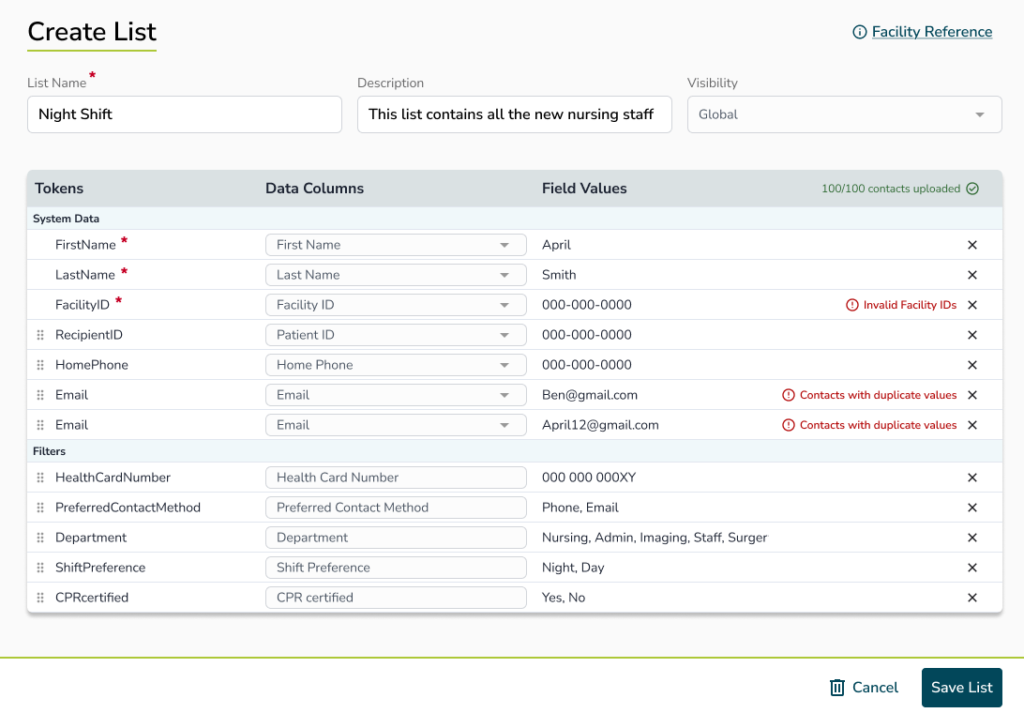
Spreadsheets must include a first name, and at least one of the following so messages can be delivered:
- Home Phone
- Cell Phone
- Global lists must contain a Facility ID column.
Click Import the upload your spreadsheet.
Mapping Contacts
- Your information will be automatically mapped as best it can. However, you need to review and confirm that the mapping is correct
- After reviewing the mapping, click Save List.
Sending to a Saved List
To send to contacts in a Saved List, go to:
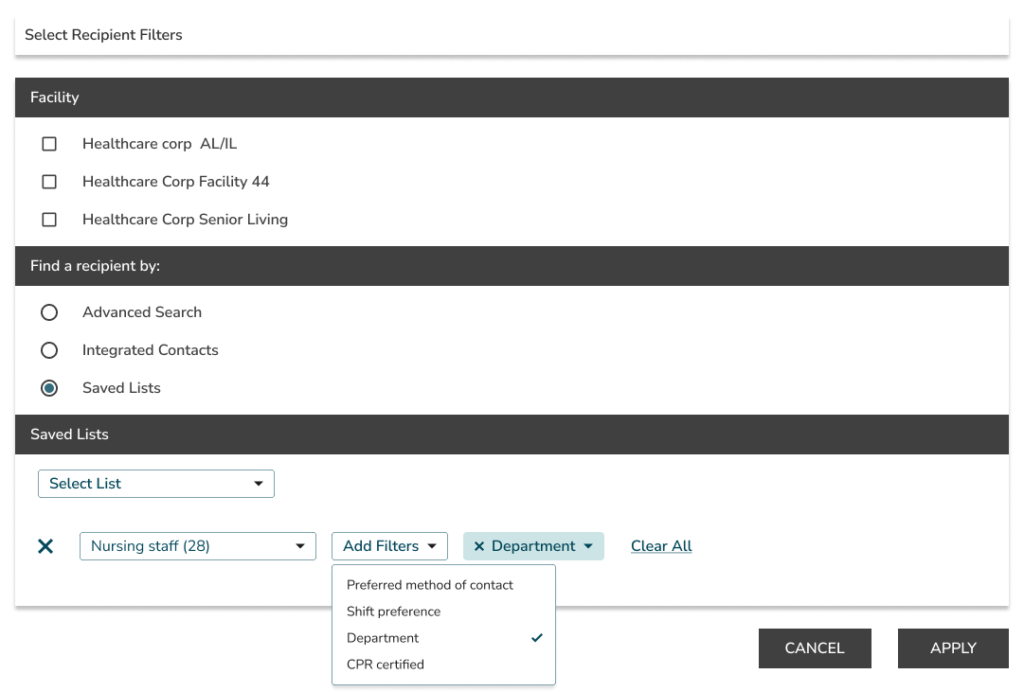
- Messages >Open a template > Find A Recipient By > Saved Lists
Choose a list from the dropdown menu, then apply filters to target the recipients you want to reach.